How to Play MOHAA on Windows 10 & 11 in 2026 (Widescreen, High FPS, and Fixes)
Want to play Medal of Honor: Allied Assault on modern hardware? Here is the complete 2026 setup guide for Windows 10 and 11, covering widescreen resolutions, safe FPS uncapping, FOV fixes, OpenGL errors, and mouse stutter.
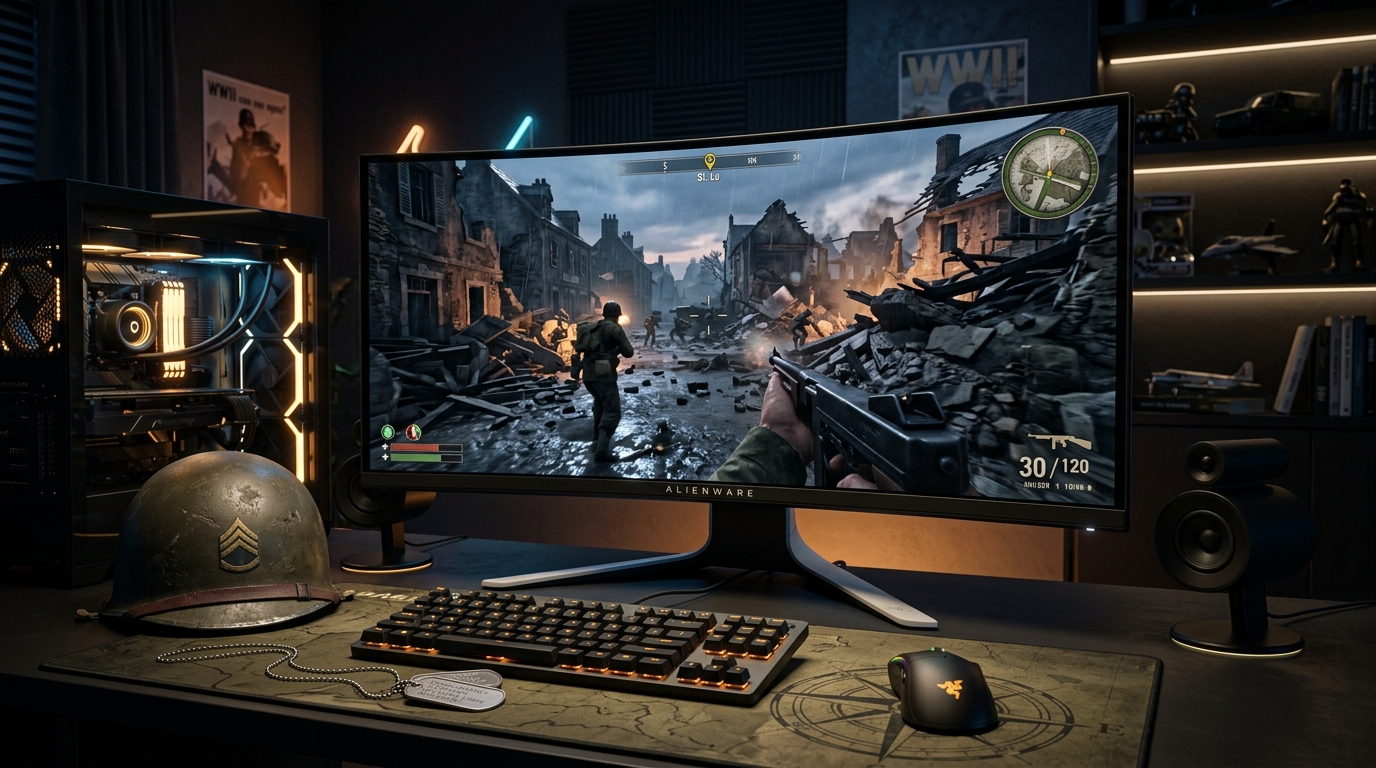
Every PC gamer remembers storming Omaha Beach in Medal of Honor: Allied Assault. You dodged machine gun fire on the sand, sniped through ruined towns, and fought through blizzard skirmishes in Brest.
If you get the itch to replay Allied Assault in 2026, you will face modern PC roadblocks. The game launched in 2002. Modern Windows versions, graphics drivers, and high-refresh displays do not play nicely with twenty-year-old defaults.
Original retail CDs often refuse to launch. The video menu caps out at ancient 4:3 resolutions. The default camera angle feels like looking through binoculars on a 16:9 monitor. Modern gaming mice can make your crosshair jump erratically.
The good news is that Allied Assault runs smoothly once you apply a few quick adjustments. This guide walks you through every essential fix to get MOHAA running at native 1080p, 1440p, or 4K with fluid framerates.
Key Takeaways
- Game Version: Use the GOG digital release or patch your CD copy to version 1.11 to bypass SafeDisc driver blocks on Windows 10 and 11.
- Widescreen Setup: Use
r_customwidth,r_customheight, andr_mode -1in your config to render native 1080p, 1440p, or 4K.- FOV Correction: Increase your field of view to
fov 90orfov 100to eliminate the zoomed-in binoculars effect on widescreen monitors.- Smooth Framerates: Cap your frame rate safely with
com_maxfps 125orcom_maxfps 144to keep classic engine physics stable.- Mouse Stutter Fix: Drop your mouse polling rate down to 125Hz or 500Hz in your mouse software to eliminate erratic crosshair stutter.
- Community Content: Grab custom maps and community mods directly from MOH-DB.
1. Getting a Working Copy (The Windows 10 & 11 CD Block)
Original 2002 Allied Assault retail discs rely on SafeDisc copy protection. Microsoft permanently removed the vintage secdrv.sys driver starting with Windows 10 due to security concerns.
If you insert your retail CD and run the installer or executable, Windows will either do nothing or show an administrator privilege error.
Here is how to resolve the disc block:
- The Recommended Option (GOG War Chest): Pick up the Medal of Honor: Allied Assault War Chest on GOG. It is completely DRM-free, pre-patched to official version 1.11, and includes Spearhead and Breakthrough. It installs and launches immediately on modern Windows.
- The Retail CD Route: If you still have your original discs, install the game and apply the official 1.11 patch. Next, replace the executable with a clean no-CD fixed executable or install the community Reborn patch (v1.12).
- The Modern Engine Route: You can also run OpenMoHAA. It uses your original game assets while running on a modern open-source engine built for current operating systems.
2. Fixing OpenGL Startup Crashes (GLW_StartOpenGL)
When launching MOHAA on modern NVIDIA, AMD, or Intel Arc graphics cards, you might encounter a crash message: GLW_StartOpenGL() - could not load OpenGL subsystem.
This crash happens because MOHAA requests a legacy 2002 OpenGL ICD context that modern graphics drivers often ignore.
Try these fixes in order:
Fix A: Set Compatibility Mode
- Open your MOHAA root directory.
- Right-click
mohaa.exeand select Properties. - Switch to the Compatibility tab.
- Check Run this program in compatibility mode for and choose Windows XP (Service Pack 3) or Windows 7.
- Check Run this program as an administrator.
- Click Apply and launch the game.
Fix B: Adjust High DPI Scaling
- In the same Compatibility tab for
mohaa.exe, click Change high DPI settings. - Check the box for Override high DPI scaling behavior.
- Set Scaling performed by to Application.
- Click OK on both dialog windows.
Fix C: Use a Modern Graphics Wrapper (dgVoodoo2)
If your graphics driver still rejects the legacy OpenGL context, you can wrap the graphics calls:
- Download the free dgVoodoo2 graphics wrapper.
- Open its
MS/x86/folder. - Copy
D3D8.dll,D3DImm.dll, andDDraw.dllinto your MOHAA installation folder (next tomohaa.exe). - dgVoodoo2 translates legacy graphics calls into modern DirectX 11 or 12, allowing the game to boot cleanly.
3. Setting Native Widescreen (1080p, 1440p, 4K)
If you check the in-game Video Options menu, the resolution selector tops out at 4:3 choices like 1024x768 and 1600x1200. Selecting one of these on a modern display results in stretched graphics or black pillarbox bars.
Because MOHAA runs on the id Tech 3 engine, you can force custom widescreen resolutions through your configuration files.
Method A: Editing unnamedsoldier.cfg (Permanent Setup)
- Navigate to your MOHAA installation folder (for GOG:
C:\GOG Games\Medal of Honor Allied Assault\main\configs). - Open
unnamedsoldier.cfgin Notepad or any plain text editor. If you created a custom player profile, look for<YourProfileName>.cfgin that folder. - Search for the resolution cvars or add them to the bottom of the file:
seta r_customwidth "1920"
seta r_customheight "1080"
seta r_mode "-1"